 WordPress products
 Joomla products
 Support
 News
News Login
LoginHow to Upload PDF Files to Your WordPress Site

Uploading PDF files to your WordPress site is one of the most effective ways to share downloadable resources, guides, brochures, whitepapers, invoices, and digital documents with your audience. However, simply uploading a file is not enough. If PDFs are not embedded properly, optimized for search engines, and structured for easy access, they can negatively impact user experience and site performance.
In this complete guide, you will learn how to upload PDF files to WordPress, how to add them to posts and pages, how to create secure download sections, and how to embed PDFs with advanced viewing features. We will also cover how to optimize images and PDFs for search engines and how to manage files professionally using tools like WP File Download.
Read more to discover how to turn simple document uploads into a structured, SEO-friendly file management strategy for your WordPress website.
Looking for a powerful file management solution for client websites?
WP File Download is the answer. With advanced features like file categories, access
restrictions, and intuitive UI.
Impress your clients with top-notch file organization!
Table of content
- Why Upload PDFs to WordPress?
- How to Upload a PDF File to WordPress
- How to Add a PDF to a WordPress Post or Page
- Using Plugins to Embed PDFs with Advanced Features
- How to Upload PDFs Using WP File Download
- Creating Download Sections in WordPress
- Secure PDF Downloads in WordPress
- Optimizing PDF Files for Search Engines
- Tracking PDF Downloads
- Cloud Integration for PDF Storage
- Final Thoughts
Why Upload PDFs to WordPress?
PDF files are widely used because they preserve formatting across devices and operating systems. Businesses use them for:
- Product catalogs
- eBooks and guides
- Contracts and forms
- Technical documentation
- Case studies
- Marketing brochures
From an SEO and performance perspective, PDFs also serve as valuable content assets. When optimized properly, they can appear in search engine results and generate additional traffic.
However, poor file handling can create problems:
- Broken download links
- Slow loading times
- Security risks
- Poor mobile experience
- Lack of tracking and organization
This is why understanding the correct way to upload and manage PDF files in WordPress is important.
How to Upload a PDF File to WordPress
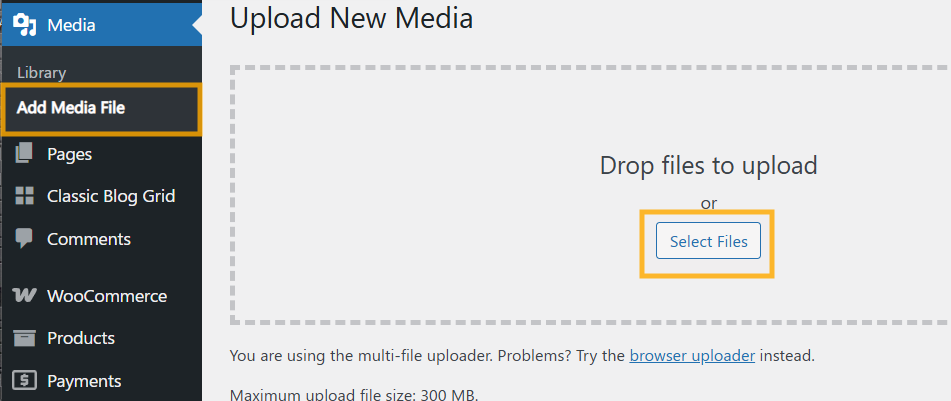
WordPress makes it easy to upload PDF files using the built-in Media Library. Follow these steps:
Step 1: Access the Media Library
- Log in to your WordPress dashboard.
- Go to the Media Library
- Click Add New
You can either drag and drop your PDF file or click Select Files to upload from your computer.
Once uploaded, WordPress generates a file URL automatically.
Step 2: Copy the PDF URL
After uploading:
- Click on the uploaded file
- Copy the File URL shown in the attachment details
You can now use this URL to link the PDF inside posts or pages.
How to Add a PDF to a WordPress Post or Page
There are multiple ways to add PDF files to content.
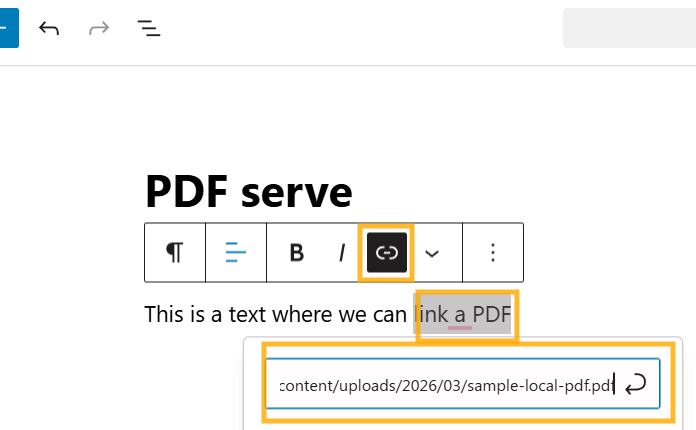
Method 1: Add a Download Link
- Open the post or page editor
- Highlight the text you want to turn into a download link
- Click the link icon
- Paste the PDF URL
- Save or update the page
This method creates a simple clickable download link.
Method 2: Use the File Block
To do this, we're using WP File Download so we will need to install it, you can get it from here.
Once we have it installed, we can go to the wp-admin > click on WP File Download > create or use an already existing category > upload the file.
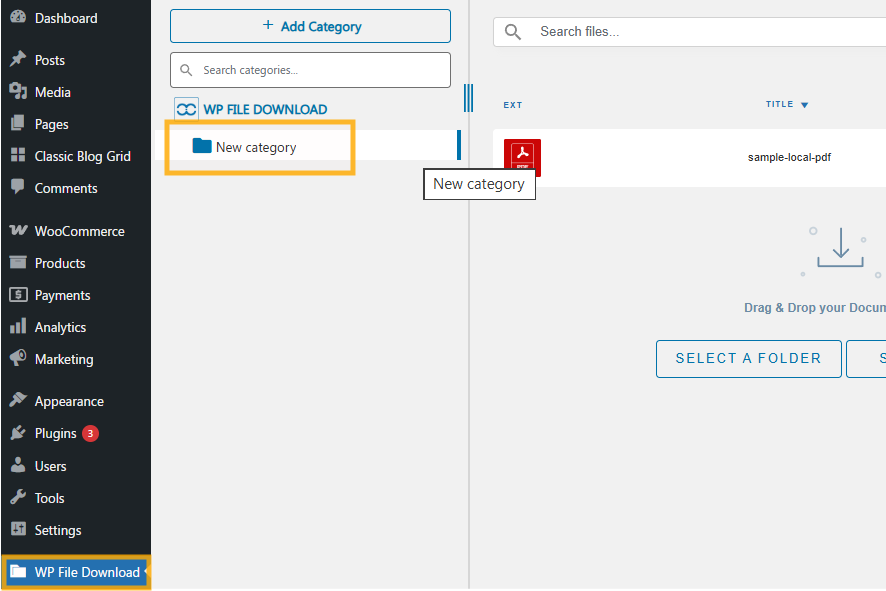
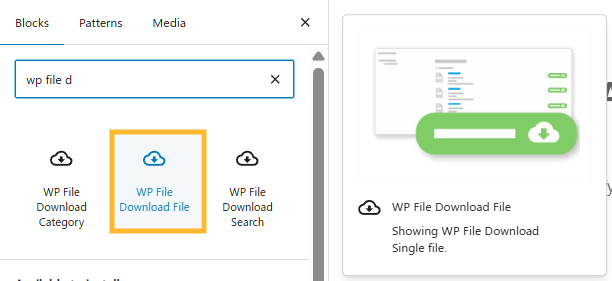
Once this is done, we can go to the page that where we want to add the download or create a new page > Add a new block > Type WP File Download and the blocks from the plugin will appear, we can select the WP File Download File block.
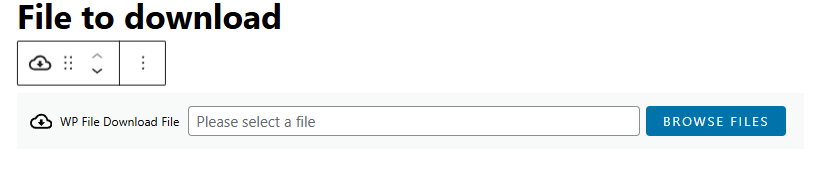
We can click on Browse file so the pop up appears to select the file that we want to add to the page/post.
No we can navigate to the category where our file is located, find it and click on Insert this File
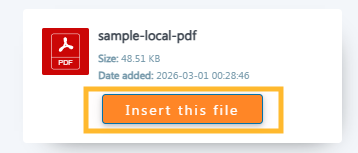
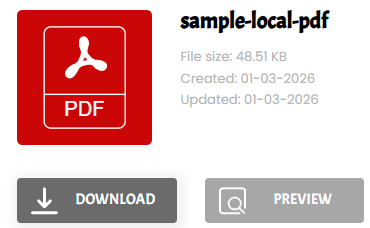
And that's it! We have the file available to preview and download so now we have the PDF file embedded with the option to download it as well.
Using Plugins to Embed PDFs with Advanced Features
If you want professional PDF display, secure downloads, analytics tracking, or file organization, you need a dedicated file management plugin.
One of the most advanced options is WP File Download.
WP File Download Overview
WP File Download is a professional WordPress file manager plugin designed for structured file management and advanced document handling. It allows you to:
- Organize PDFs in categories
- Create download repositories
- Restrict access by user roles
- Track download statistics
- Add file previews
- Protect files with security settings
- Integrate cloud storage
Instead of uploading random files into the Media Library, you can create structured file categories and manage documents professionally.
How to Upload PDFs Using WP File Download
After installing and activating WP File Download:
- Go to WP File Download in the dashboard
- Create a new file category
- Click Add File
- Upload your PDF
You can then insert the category into any page using a shortcode or block, as explained in the previous point.
This method is ideal for websites offering multiple downloads, such as documentation centers, member portals, and digital libraries.
Creating Download Sections in WordPress
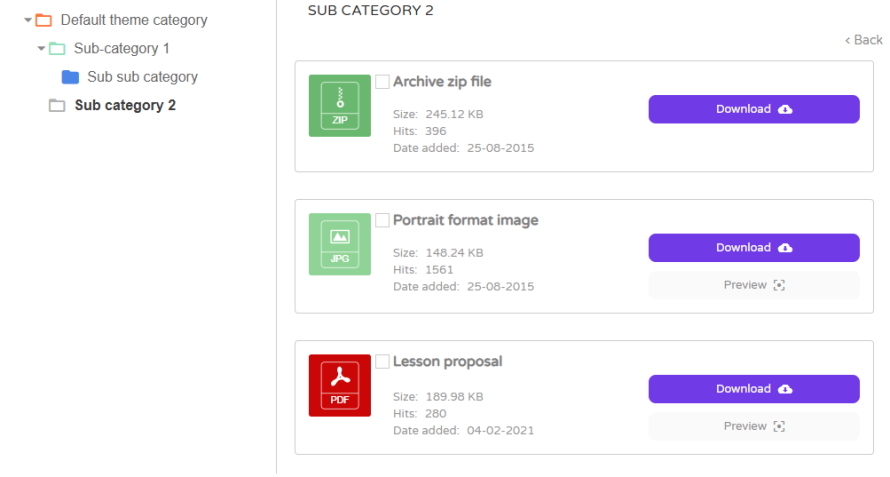
If your site provides multiple PDF files, creating a dedicated download section improves user experience and SEO structure.
Best Practices for Download Pages
- Use descriptive file names
- Add a short description for each PDF
- Include file size information
- Organize files by topic or category
- Use clear call-to-action buttons
With WP File Download, you can create visually organized download lists with sorting and filtering options.
This improves navigation and reduces bounce rates.
Secure PDF Downloads in WordPress
Security is essential when handling sensitive documents such as contracts, invoices, or premium content.
Common Security Risks
- Direct URL sharing
- Unauthorized downloads
- File indexing by search engines
- Bandwidth abuse
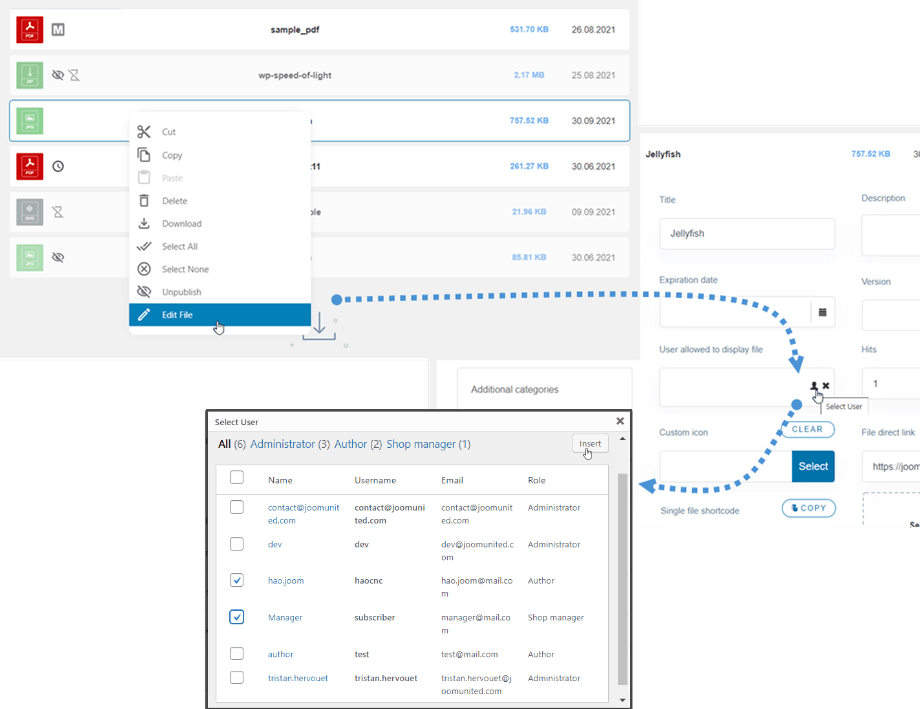
Using advanced file management plugins allows you to:
- Restrict downloads to logged-in users
- Block direct file access
- Password-protect files
- Control download permissions
WP File Download provides built-in access control features, making it ideal for membership sites and private client portals.
Optimizing PDF Files for Search Engines
Search engine optimization does not stop at blog posts. PDFs can also rank in search results.
Optimize the PDF File Itself
Before uploading:
- Use keyword-rich file names
- Add proper document title metadata
- Include headings inside the PDF
- Compress the file size
- Add internal links when relevant
For example, instead of naming your file document1.pdf, use wordpress-pdf-upload-guide.pdf.
Optimize the Download Page
- Add a clear title and meta description
- Use structured headings
- Include related content
- Add alt text for icons or preview images
- Create internal links
Search engines index both the PDF and the page hosting it. Optimizing both increases visibility.
Tracking PDF Downloads
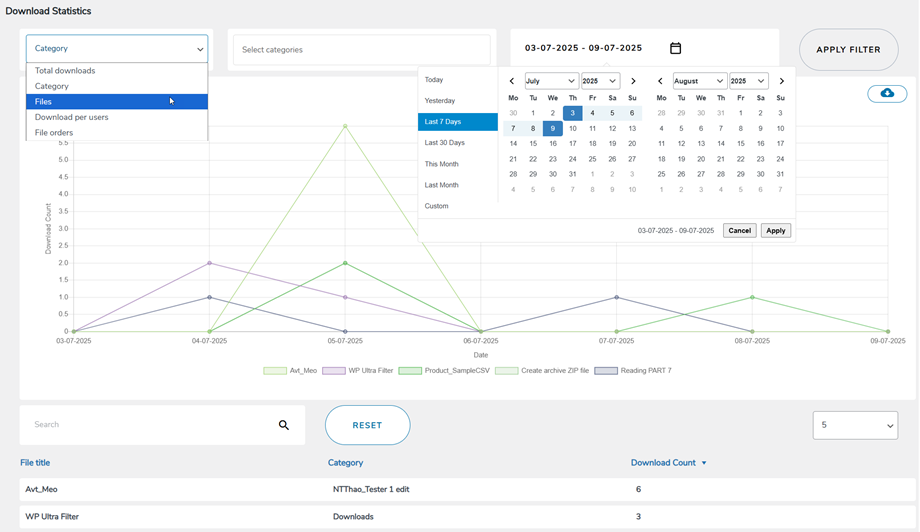
If you are offering lead magnets, eBooks, or digital brochures, tracking downloads is critical.
Without tracking, you cannot measure:
- Popular documents
- Conversion rates
- User engagement
- Content performance
WP File Download includes download statistics so you can see how many times a document was downloaded and identify high-performing files.
This data helps refine your content strategy.
Cloud Integration for PDF Storage
Large PDF files can increase server load. Using cloud storage improves performance.
Advanced file management plugins allow integration with:
- Google Drive
- Dropbox
- OneDrive
- Amazon S3
Cloud storage reduces server strain and improves file delivery speed.
WP File Download supports cloud integration, allowing files to sync while still being displayed inside WordPress.
Calling all webmasters!
Enhance your client websites with WP File Download. Create secure and customizable file
repositories, allowing clients
to easily access and manage their files.
Upgrade your web design services today!
Final Thoughts
Uploading PDF files to your WordPress site is simple, but managing them properly requires structure, optimization, and security planning. By using the Media Library for basic uploads or implementing advanced tools like WP File Download, you can create a professional download experience that enhances user engagement and search visibility.
When you combine organized file categories, secure access controls, optimized file naming, and search-friendly images, your PDF strategy becomes a valuable asset rather than just a file attachment.
Implement these best practices to ensure your WordPress site handles PDF uploads efficiently, securely, and in a way that supports long-term SEO growth.
When you subscribe to the blog, we will send you an e-mail when there are new updates on the site so you wouldn't miss them.



Comments