 WordPress products
 Joomla products
 Support
 News
News Login
LoginHow to Auto-Generate Image Alt Text and Titles with WP Media Folder's AI Tools

Auto-generating image alt text and titles has become one of the easiest ways to improve image SEO without spending hours on manual edits. With WP Media Folder's AI tools, managing image metadata becomes faster, more consistent, and more accurate. This approach not only enhances accessibility but also helps search engines better understand and index your visuals.
In this article, we'll walk through the complete process, from configuring AI metadata and auto-generating alt text to reviewing and refining the AI results for accuracy. If you're looking to optimize your image SEO more efficiently, make sure to read this guide all the way to the end.
- Auto-generating image alt text and titles helps improve image SEO quickly, making visuals easier for search engines and screen readers to understand without manual work.
- WP Media Folder's AI Metadata automates alt text, titles, captions, descriptions, and file names, giving you consistent, accurate, and SEO-friendly metadata across the entire media library.
- You can refine AI-generated results to avoid common issues like keyword stuffing or incorrect descriptions, ensuring metadata stays natural, contextual, and aligned with your site's content.
Table of content
Why Auto-Generating Alt Text & Titles Matters?

Image alt text and titles may look simple, but they play a significant role in helping search engines understand your visuals. When these elements are generated automatically by AI, the process becomes faster, more consistent, and far easier than manually filling everything in.
- Helps search engines understand your images: Alt text gives Google context about what appears in your images, increasing their chances of showing up in image search results.
- Improves website accessibility: Screen readers rely on alt text to describe images to users with visual impairments.
- Saves time for websites with many images: AI can produce clean, consistent metadata in seconds—perfect for blogs, e-commerce stores, or portfolios.
- Boosts overall page ranking potential: Clear image metadata helps Google better understand the entire page, not just the written content.
Configuring WP Media Folder's AI Metadata

WP Media Folder is a WordPress plugin that helps you organize, manage, and optimize your media library more efficiently. Beyond its file-management features, it also includes an AI-powered metadata tool that can automatically generate image alt text, titles, captions, and descriptions. This automation makes it easier to maintain consistent, SEO-friendly metadata across your entire website.
The WP Media Folder AI Metadata feature analyzes the visual content of your images and generates relevant descriptions and attributes. This helps improve accessibility, strengthens image SEO, and saves time—especially for websites with large image libraries. Even after the AI generates metadata, you can edit everything manually from the WordPress media library, giving you complete control over the final output.
How to Configure WP Media Folder's AI Metadata
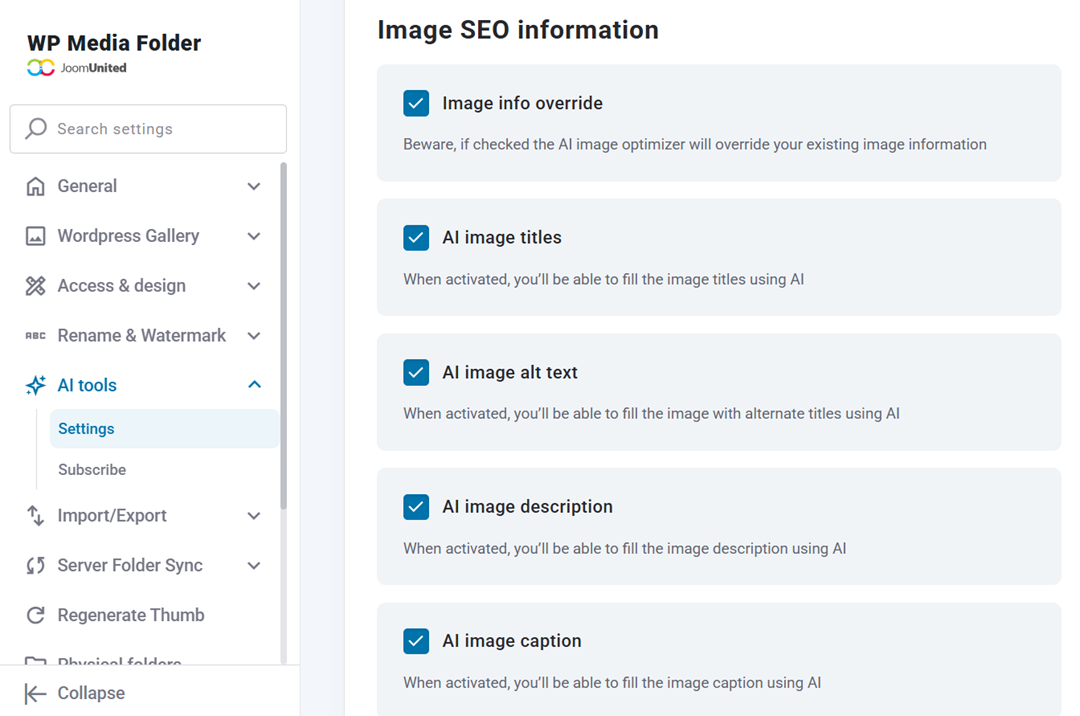
To start using AI metadata generation, first install and activate the WP Media Folder plugin in your WordPress dashboard. Once it's installed, go to Settings > WP Media Folder > AI Tools, then open the Settings tab. This is where you can enable and customize all the AI-powered image optimization features.
On the Settings page, you'll find multiple configuration options such as credit quota, automatic image optimization, and other AI-related tools. In the Image SEO Information section, make sure to enable the following options:
- Image info override: Allows the AI optimizer to replace any existing image metadata.
- AI image titles: Generates image titles automatically using AI.
- AI image alt text: Produces alt text for each image based on the content.
- AI image description: Creates descriptive text for images to improve SEO and accessibility.
- AI image caption: Automatically generates a caption for images using AI.
Configuring File Naming and Global AI Settings
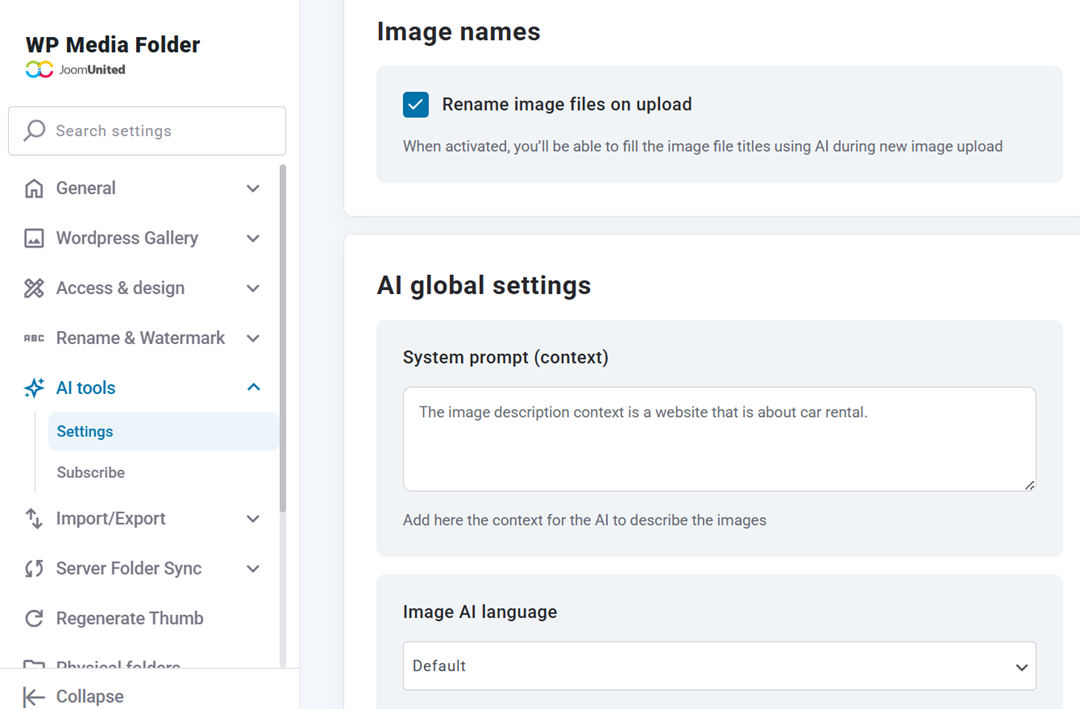
Before adjusting the global AI options, WP Media Folder also lets you control how image file names are handled. This is useful if you want cleaner, SEO-friendly filenames that match the metadata generated by AI. Under Image Names, you can enable Rename image files on upload It automatically generates SEO-friendly file names when new images are uploaded.
In addition to Image Names, there is also an AI Global Settings section below. Here, you'll find:
- System prompt (context): This is where you set the context that guides how the AI should describe images. For example: "The image description context is a website about car rental." You can adjust this based on your website's niche so the AI generates more accurate and relevant metadata.
- Image AI language: Choose whether to use WordPress's default language or force the AI to generate metadata in a specific language. The plugin supports dozens of languages, making it a flexible option for multilingual websites.
Supercharge your WordPress images with AI.
WP Media Folder Image AI helps you optimize images automatically, generate alt texts, improve SEO, and compress files in one click.
Upgrade your media workflow with intelligent automation.
Auto-Generating Alt Text & Titles (Step-by-Step)
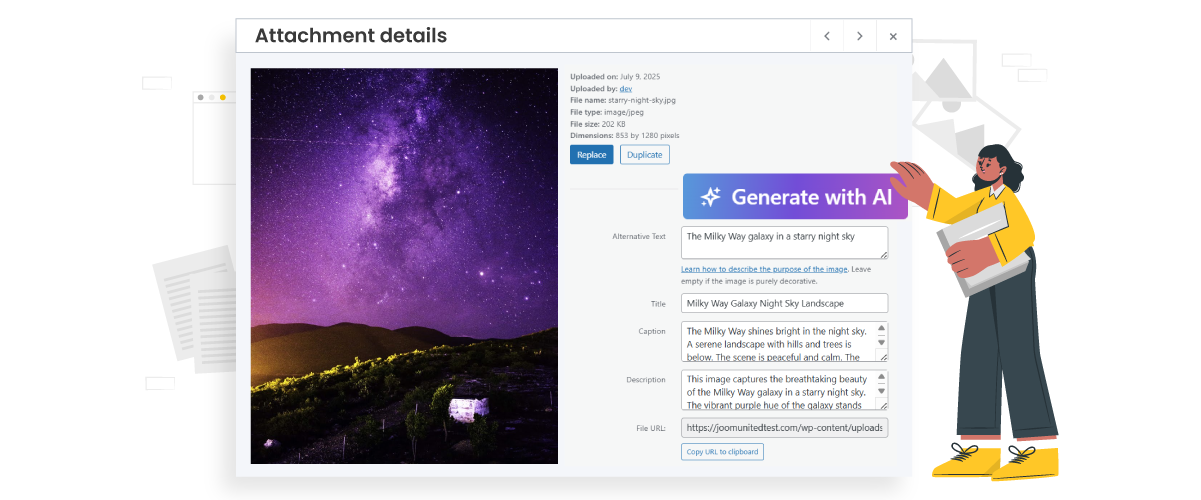
Once your AI settings are configured, you can start generating metadata directly from your WordPress media library. The process is simple, and WP Media Folder allows you to optimize single images or multiple images at once using the same AI rules you set earlier.
Select Images for AI Processing
Before generating metadata, you need to select the images you want to optimize. The AI will apply your previously configured settings—such as context, language, and enabled metadata types—to deliver accurate, SEO-friendly results.
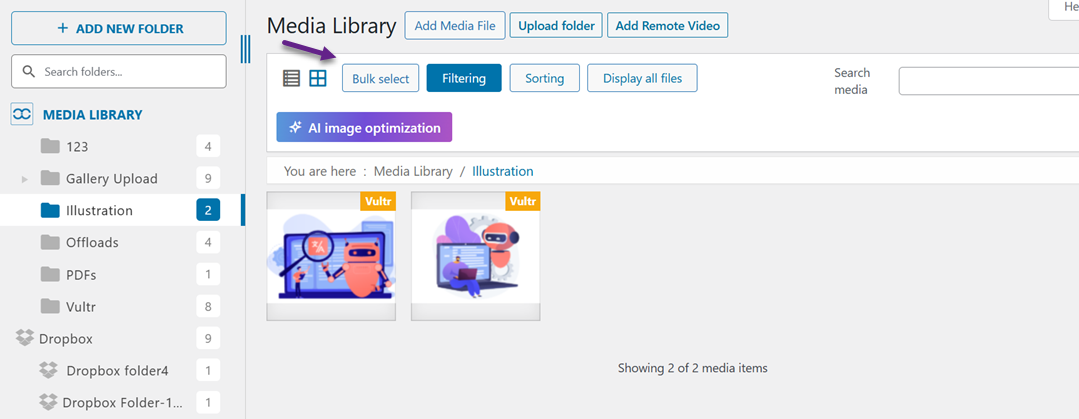
To get started, open Media > Library in your WordPress dashboard. If you want to optimize one image, click on the image to open its details panel. If you want to process multiple images at once, select Bulk Select, choose all the images you want, and proceed to the optimization step.
Run the AI Metadata Generator
After selecting your images, you'll see the option to Generate with AI. Click this button, and the system will automatically start creating alt text, titles, captions, and descriptions. This usually takes just a few seconds.
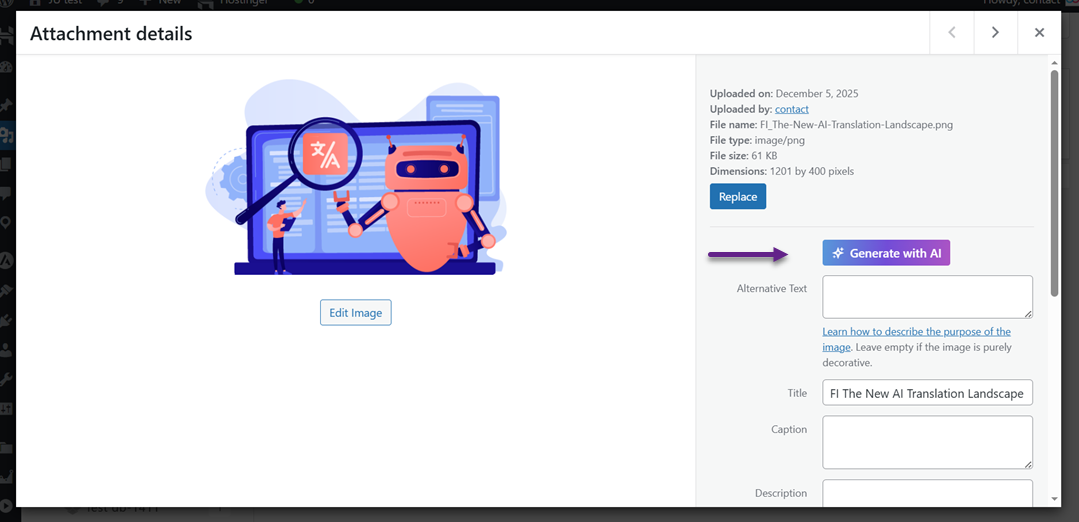
Once the process is done, the metadata fields—such as Alt Text, Title, Caption, and Description, will be filled in instantly. These results are generated based on the image's visual content and the system prompt you configured earlier, ensuring the metadata is relevant and aligned with your site's context.
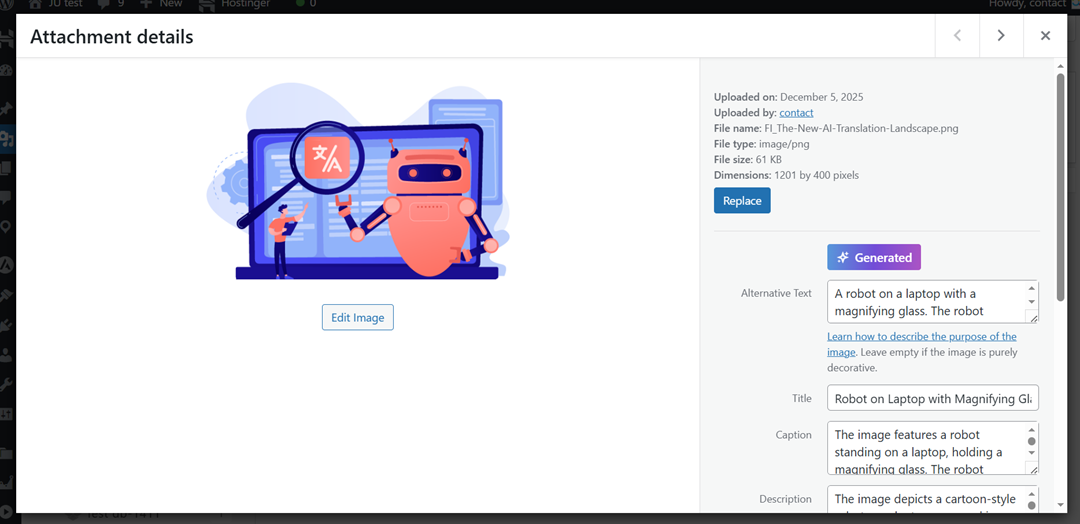
Verifying and Editing AI-Generated Metadata
Even though AI does most of the work, it's still important to review the results. Sometimes the AI may describe something too generally or miss important details. Fortunately, all AI-generated metadata can be edited manually right in the media library.
You can adjust keywords, refine descriptions, or rewrite parts that feel inaccurate. This ensures every image has metadata that is not only optimized for SEO but also perfectly aligned with your content and brand tone.
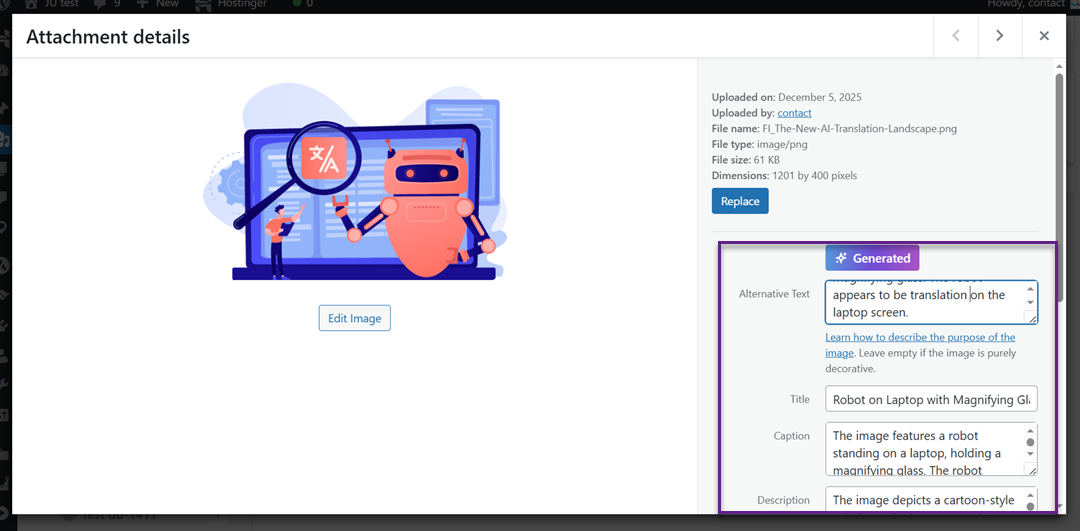
Image SEO Best Practices with AI

Using AI to generate metadata can make image optimization much easier, but the quality still depends on how you refine the results. These simple best practices will help you get more accurate, search-friendly metadata that strengthens your overall SEO.
Write Descriptive, Keyword-Smart Alt Text
Alt text should accurately describe what appears in the image while naturally including keywords related to the page. AI-generated descriptions can be a good starting point, but you may need to adjust them to ensure they match the actual visual and add meaningful context. Clear, specific descriptions help search engines understand the image and improve visibility in image search results.
Avoid adding too many keywords—focus on one main phrase that makes sense in the description. The goal is to create alt text that sounds natural, reads smoothly for screen readers, and stays relevant to both the image and the page's topic.
Optimize Image Titles for Indexing
Image titles often appear in tooltips or file previews, giving users and search engines an extra hint about the image's purpose. When using AI to generate titles, make sure they remain short, readable, and aligned with the surrounding content. A clean and well-structured title can help reinforce keyword relevance without overwhelming the reader.
While the title should be descriptive, it doesn't need to be as detailed as alt text. Think of it as a concise label—something that quickly tells both users and search engines what the image represents.
Avoid AI Keyword Stuffing
AI tools sometimes insert too many keywords into metadata, especially if the image relates to a competitive topic. Keyword stuffing not only looks unnatural but can also harm your SEO, as search engines may treat it as spammy behavior. Always review AI-generated text and remove unnecessary repetitions.
A good rule of thumb is to keep metadata simple and human-friendly. If the text sounds forced or overly optimized, refine it into a more natural sentence that still includes your primary keyword. This ensures your metadata helps rather than hurts your SEO.
Common AI Metadata Mistakes to Avoid

AI can speed up the process of generating image metadata, but it isn't perfect. Understanding the most common mistakes helps you avoid issues that could weaken your SEO or lead to inaccurate descriptions. With a few minor adjustments, you can make sure AI remains a helpful tool—not a source of new problems.
Relying Too Much on Automation
One of the biggest mistakes is assuming AI-generated metadata is always accurate. While AI can quickly describe images, it can also misinterpret objects, miss context, or add irrelevant details. This can hurt accessibility and confuse search engines, especially if the description doesn't match the image content.
To avoid it, always double-check AI results before publishing. Treat AI metadata as a draft rather than a final version, making small edits to ensure accuracy and context. This simple review step helps maintain quality without losing the time-saving benefits of automation.
Using Generic or Weak Prompts
AI tools often rely on prompts or settings to generate effective metadata. If the prompts are too generic—like "describe this image", the results may end up vague or inconsistent. Weak prompts often result in metadata that doesn't support SEO or fails to highlight the image's purpose on the page.
To avoid it, use clearer prompts or configure the tool with rules that cover style, tone, and keywords. For example, instruct the AI to "describe the main subject and include one relevant keyword." Strong prompts lead to more accurate, SEO-friendly outputs.
Not Updating Metadata After Image Changes
Sometimes images get replaced, edited, or moved to a different context—but the metadata is left unchanged. This makes the alt text or title inaccurate, which can confuse both users and search engines. Outdated metadata is one of the easiest mistakes to overlook, especially on large websites.
To avoid it, whenever you update an image, take a moment to refresh its metadata as well. If you're using WP Media Folder's AI tools, you can regenerate the metadata in seconds and edit anything that needs refinement. Keeping metadata aligned with the actual image ensures your SEO remains clean and accurate.
Calling all webmasters!
Save hours of manual image work with WP Media Folder Image AI. Auto-optimize images, generate alt texts, enhance SEO, and deliver lighter, faster-loading sites for your clients.
Supercharge your image workflow today!
Conclusion
Auto-generate image Alt or metadata has become one of the most effective ways to speed up image optimization while keeping results consistent across your website. This approach helps you produce accurate alt text and titles—two essential SEO and accessibility elements—without manually editing each image. With AI handling the initial draft, search engines can better understand your visuals, and users who rely on screen readers get a clearer, more meaningful experience.
WP Media Folder AI Metadata then takes this workflow even further by providing flexible controls, customizable AI context, multilingual output, and full manual editing options to refine every result. If you want to improve image performance, strengthen SEO, and save significant production time, now is the perfect moment to leverage WPMF's AI Metadata feature to optimize your entire WordPress media library.
When you subscribe to the blog, we will send you an e-mail when there are new updates on the site so you wouldn't miss them.



Comments